Fewer False Failures: Introducing DOM-Level Element Matching
My role
- Research
- Conceptualisation
- Design
- Prototype
Tool used
- Figma
- Figjam
Project info
- 0-to-1 feature
- Experimental project
- B2B SaaS
- Low code QA testing platform and QA services
Visit the website
Overview
About Rainforest QA
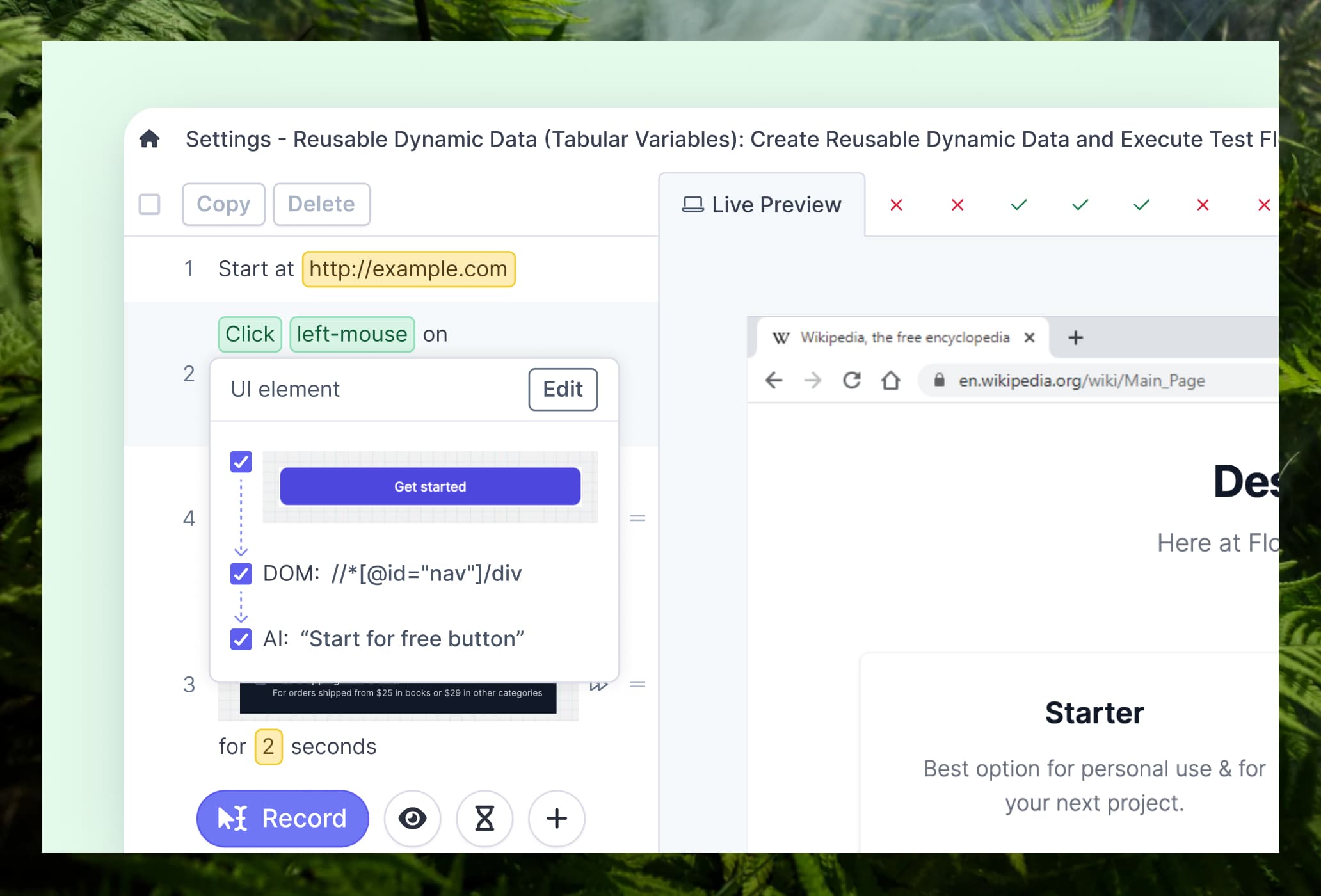
- Rainforest QA is a no-code test automation platform
- Users can easily creating test steps with predefined actions such as clicking, scrolling, or typing
- To identify UI elements like a login button or password field, users can capture screenshots from a live preview on a virtual machine (on the right).
- During test execution, the agent scans the website to find elements that match the screenshots. Tests run from top to bottom, step by step.
- The target users are typically technical, developers and QA engineers who need reliable test automation without the overhead of building and maintaining a full testing infrastructure.
The Problem
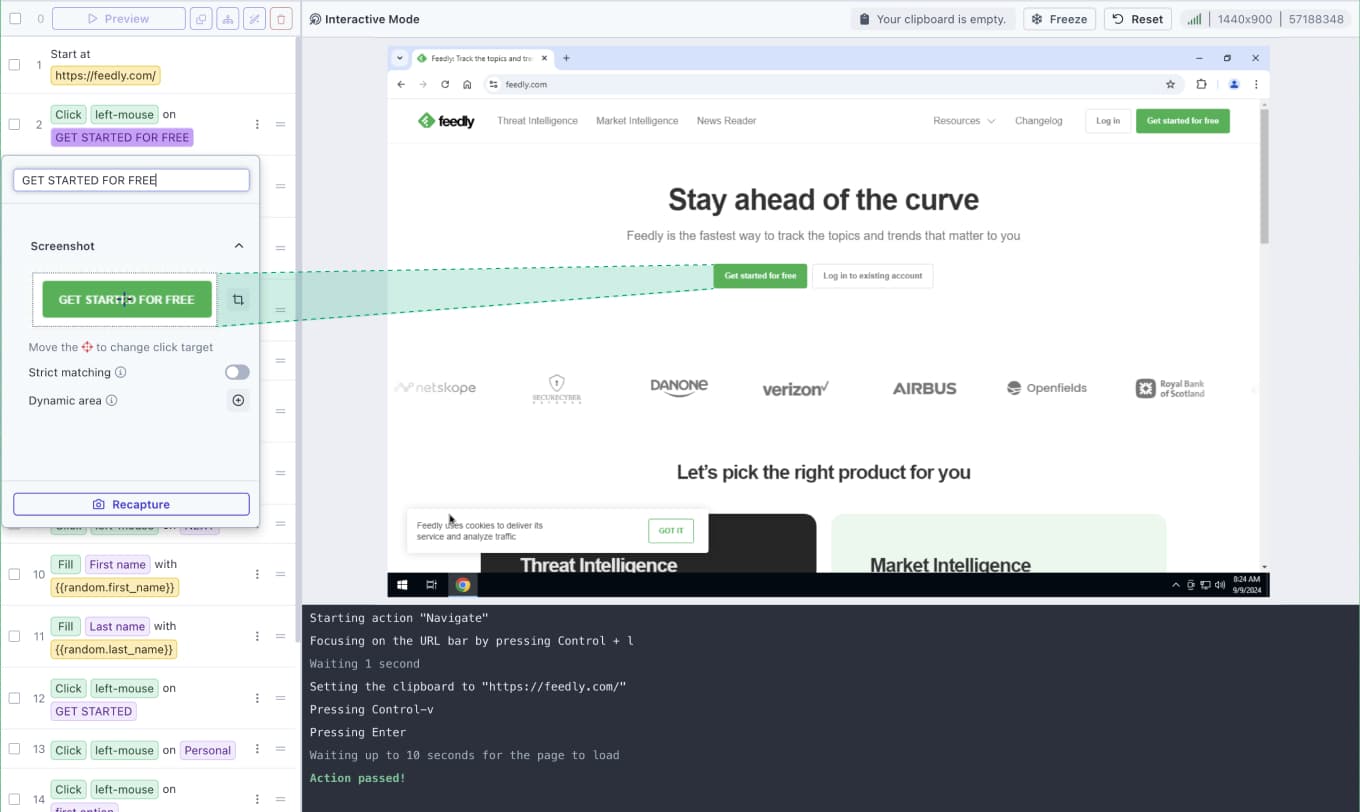
Customers were losing confidence in their test results. It’s not because their product was broken, but because the testing tool was sometimes produce unreliable result.
Image matching was the root cause:
- Flakiness: Tests failed inconsistently. A test could pass one day and fail the next with no real change to the product being tested."
- False negatives: If the UI changed slightly (a button moved or a color updated), the test would fail even when the functionality was fine.
- Platform compatibility: Browsers render elements differently. A test built for Chrome might fail on Firefox or Safari. It’s not because anything is broken, but because the visual output looks slightly different to the image matcher. For teams testing large applications across multiple browsers, this meant rebuilding and maintaining separate tests for each platform.
- High maintenance: Frequent UI changes can result in significant ongoing maintenance.
Users were spending time investigating failures that weren't real failures. That erodes trust quickly.
Goals
Explore whether DOM-based element matching could solve the flakiness problem. If it could, integrate it into the product in a way that was fast to ship and easy to use.
For this case study, I'm focusing specifically on the element modal, where users configure the screenshot used for image matching. DOM matching would be built on top of this existing flow.
Process overview
I worked closely with one PM and engineering team. I owned the end-to-end design process, from research and concept exploration through to final shipped design and iteration.
Research & Concept Validation
I conducted a competitor analysis and gathered the necessary information before designing the feature.
Further improvement: Dynamic matching mode exploration
After launching and gathering feedback, we're ready to move forward. I explored several ideas and created interactive prototypes for testing.
Final design
After a few iterations, we finalized the design.
Challenges
3 things that shaped how I approached this project:
- Scope: DOM matching opens up a lot of possibilities, we need to decide what belonged in the MVP. Which required constant trade-offs between what we wanted and what we could realistically ship.
- Usability: How can we prevent users from entering incorrect DOM snippets? Even technical users may find it challenging to identify the correct DOM snippet.
- Speed: This was an experimental project. The goal wasn't to build the perfect solution, it was to learn fast enough to decide whether to invest further.
01 — Research & Concept Validation
Understanding the space
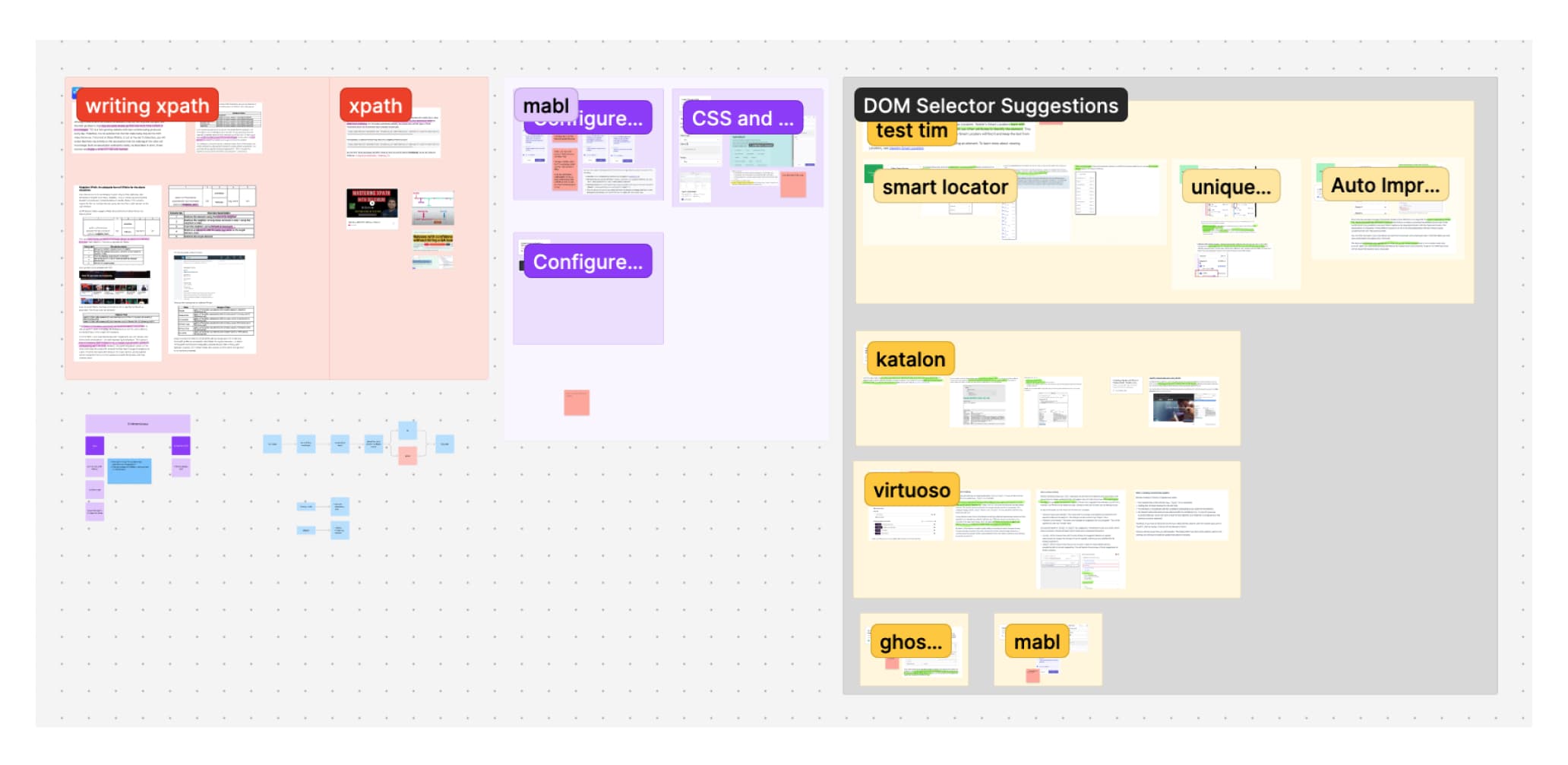
Before designing anything, I needed to understand DOM well enough to make good decisions. I read technical documentation, talked to our PM and engineers to understand their concerns and mental models, and looked at how competitors were handling element matching.
A few things stood out from the research:
- Competitors were solving this problem in different ways. Mabl built a 'Configure Find' feature that lets users specify which element attributes matter most — without needing to know CSS or XPath. Virtuoso goes further by auto-generating selectors and suggesting replacements when one becomes unreliable. Testim takes a similar approach with a rating system across multiple auto-generated selectors. My conclusion was that these tools were trying to move away from making users write or manage selectors manually.
- Our engineers and PM were open to DOM matching but cautious. The thinking was that DOM can work as a substitute for image matching, but there are enough variables that we couldn't be sure it would actually solve the flakiness problem until we tested it in real conditions.
- Early adopters of this feature would likely be technical users. Which meant we didn't need to over-simplify the input method for V1.
Design exploration
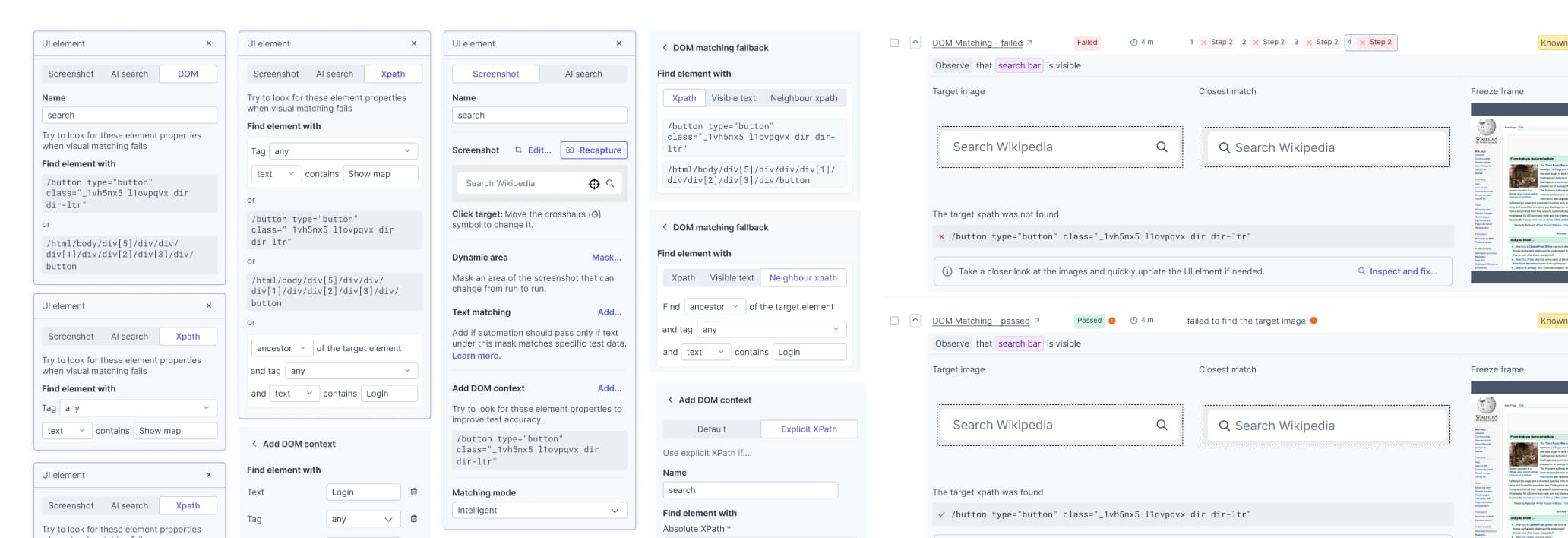
Using our internal design system, I explored several directions quickly. The goal wasn't polish, it was to get options in front of stakeholders fast and pressure-test the concepts.
The key question at this stage was: how much should we guide the user in providing the right DOM input?
Options ranged from a fully guided flow with validation and hints, to a simple text input field with minimal hand-holding. Each had real tradeoffs in both UX quality and build time.
The MVP decision
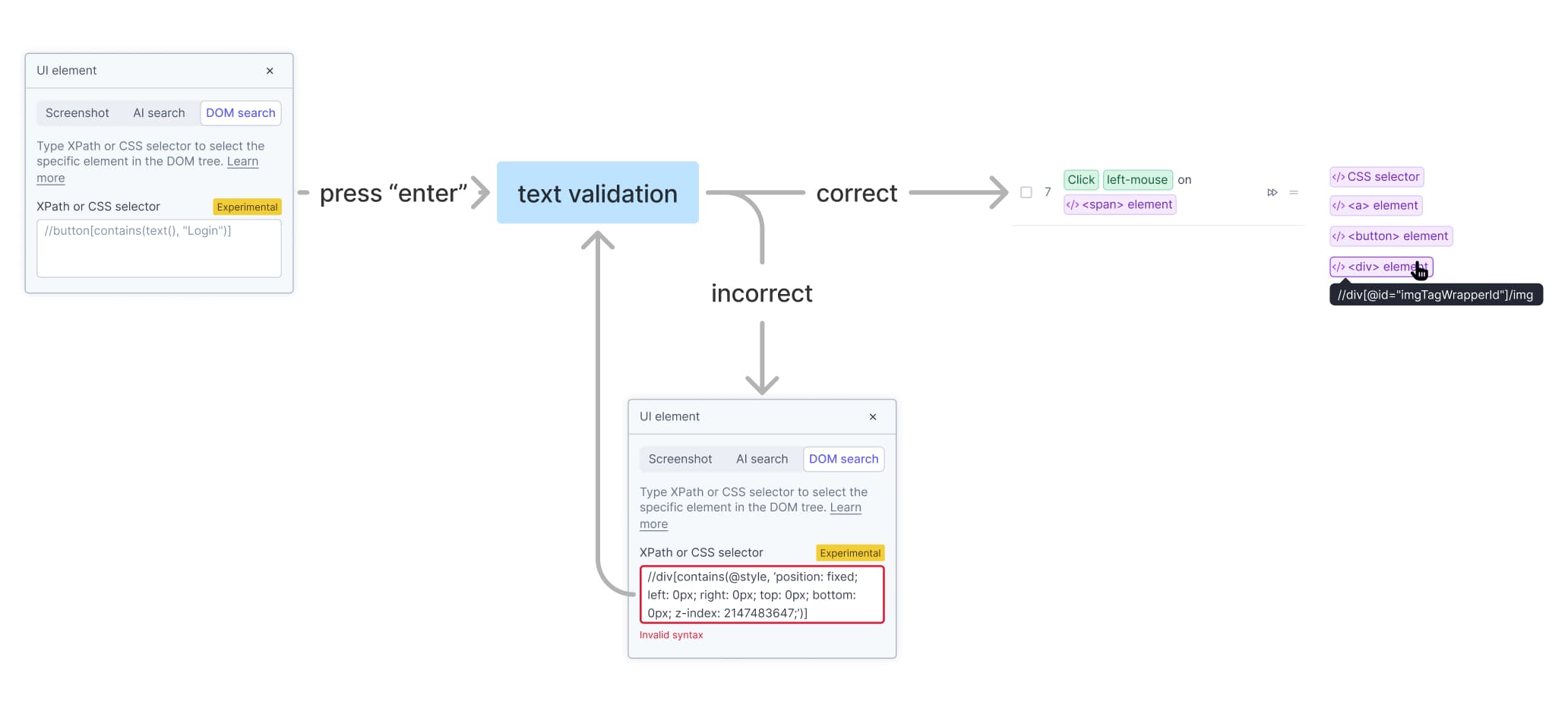
We went with a straightforward text input field with no DOM guidance, which is the simplest approach. Here's the reasoning:
- V1 wasn't about building the ideal experience. It was about confirming a hypothesis: does DOM matching actually reduce flakiness in real usage?
- Our earliest users would be technical enough to handle a raw input field.
- UX investment beyond the basics would be wasted if the core concept didn't hold up.
That said, I did push for one small addition: basic syntax validation. Even for technical users, entering an invalid DOM snippet with no feedback is a frustrating dead end. A simple inline error for invalid syntax was a low-effort safeguard that made the experience meaningfully less error-prone.
Results
It worked. Users who adopted DOM matching reported fewer false test failures. The feature held up in real conditions, and we decided to invest in V2.
02 — Further improvement: Dynamic matching mode
After launching and gathering feedback, we're ready to move forward. I explored several ideas and created interactive prototypes for testing.
A bit of context first
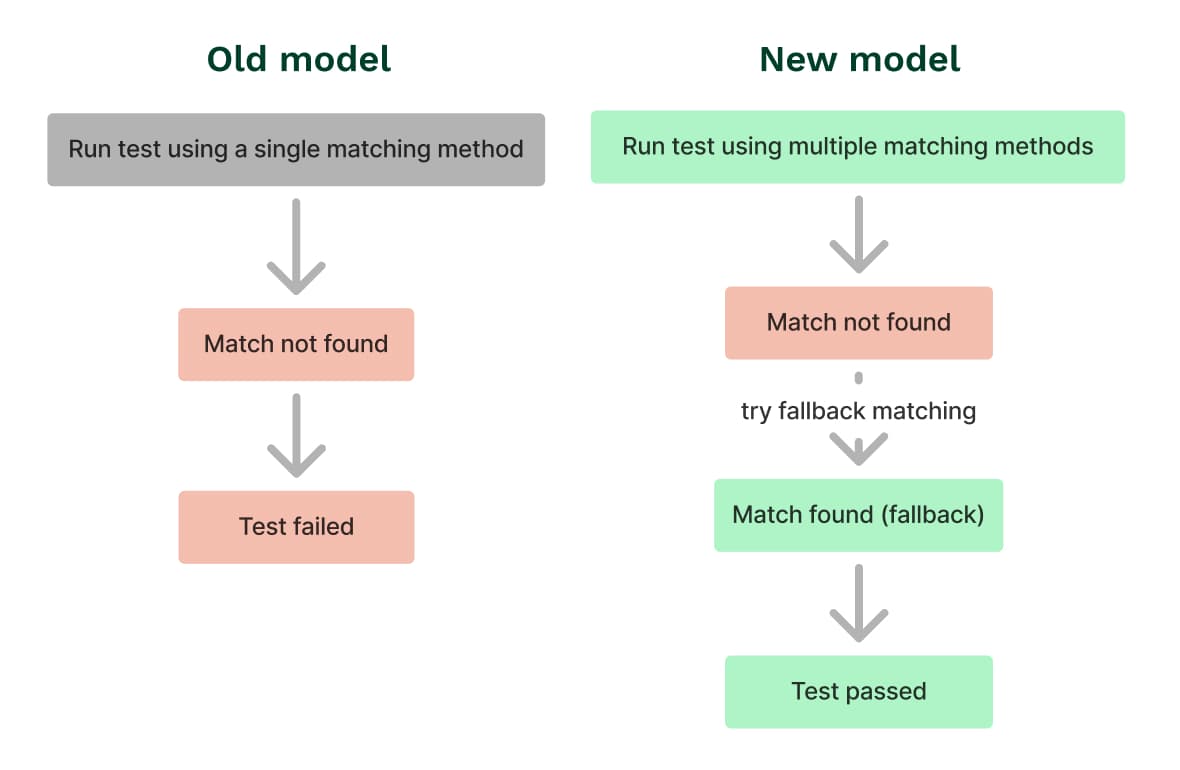
The old model was binary, pick a matching method, and if a match wasn't found, the test fails.
The new model introduced a fallback chain. If the first matching method doesn't find the element, the system automatically tries the next enabled method. This increases the chance of a test passing without any extra effort from the user, which directly addresses the flakiness problem.
A matching method is how the system identifies a UI element during a test run, either by taking a screenshot of it (image matching) or by reading its code structure (DOM matching). A fallback is a backup method. If the primary method fails to find the element, the system tries the fallback instead of immediately failing the test.
The design challenge: how do you present this fallback logic in the element modal without confusing users or cluttering the UI?
Exploring the options
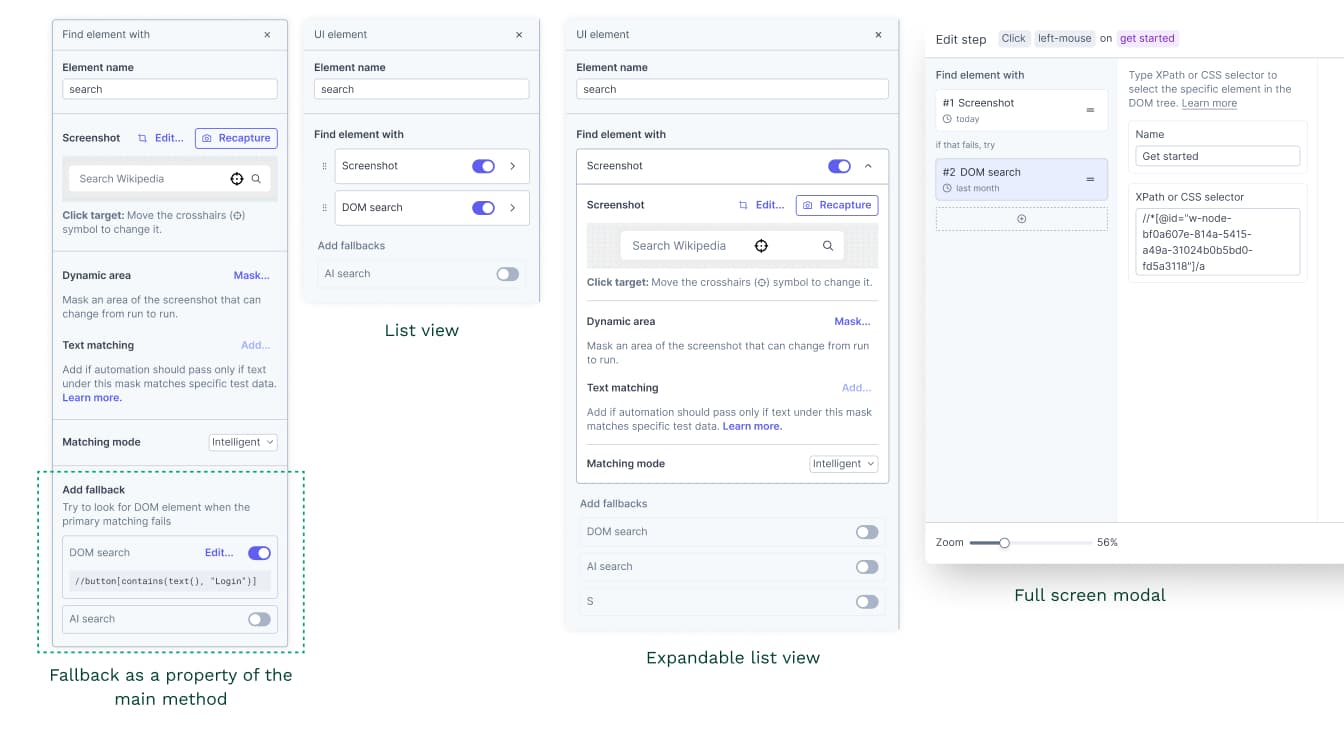
I explored 3 directions:
- Option 1 — Fallback as a property of the main method: The fallback settings would live inside the configuration of the primary method. Lowest engineering effort, but the interaction was confusing. It wasn't obvious to users how to manage or configure fallback options
- Option 2 — List view: Matching methods displayed as a simple ordered list. I explored 2 variations of this:
- Slide to sub-page: each method opens a new screen inside the modal. Users have to navigate back to the list to see or switch between methods. I realized that this option creates unnecessary back and forth.
- Expandable list: the list expands downward in place. Users stay in one view and can see all 2 methods and their values at once, no context switching, no unnecessary navigation.
- Option 3 — Full-screen modal: A dedicated screen entirely focused on matching configuration. Most flexibility for future feature expansions but would have required building a new modal component from scratch, which wasn't justified at this stage.
The decision
We went with Option 2. The list view gave users visibility into 2 methods simultaneously and a clear sense of order without requiring significant new engineering work. It also felt less intimidating than a full-screen takeover for what is, at its core, a focused configuration task.
After the first iteration we didn't stop there though. After reviewing the design, we felt it could be lighter. We simplified it further. Trimming anything that wasn't essential until it felt easy to understand at a glance without losing any of the functionality.
One thing worth noting: by the end of the project, AI matching method was added. It wasn't part of the early exploration, but the list view design accommodated it naturally. The final design shows all 3 methods: image, DOM, and AI.
03 — Final design
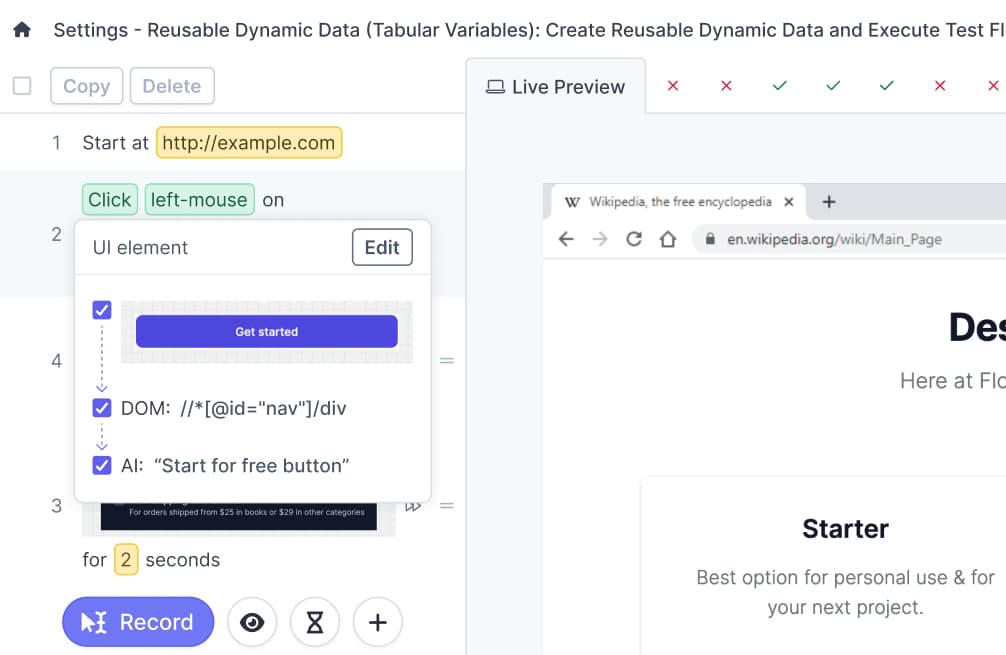
After a few iterations, we landed on the list view with a simplified, lightweight appeal.
Here's what shaped the final design and why:
- Arrows to show fallback flow: I added arrows between the methods to make the fallback sequence immediately readable. Rather than explaining the order in text, the arrows let users see at a glance that the system moves from one method to the next if a match isn't found.
- From cards to a lighter list: Initially, each method was displayed as a card. My plan was to make them draggable so users could set their own order. Due to constraints we fixed the execution order, so the card format wasn't needed anymore. Removing it made the design noticeably lighter.
- Values visible without extra navigation: Each method shows its value directly in the list. The image thumbnail, the DOM snippet, and the AI description are all visible upfront without drilling down through menus.
- Checkbox over toggle: I replaced toggles with checkboxes to enable or disable each method. Toggles carry more visual weight and take up more space. Checkboxes work and keep the design clean.
How it works
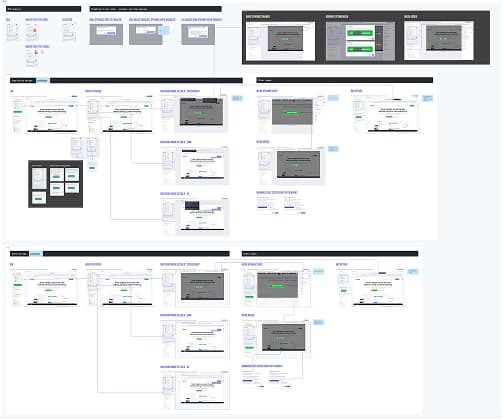
Hand-off document including screen flow, logic, interactive behaviour, and interactive prototype
- When creating new test step, the element modal opened. User takes a screenshot of the element from the virtual machine. This becomes the image matching value.
- DOM is auto-captured at the same time and populated automatically if found.
- An AI description is auto-generated.
Users can manually edit the DOM snippet or AI description. If they do, those fields are locked. They won't be overwritten if the screenshot is recaptured later.
The fallback logic works like this:
- During a test run, the system first tries to find the element using the image matching.
- If that fails, it automatically moves to the next enabled method, DOM matching.
- If that also fails, it tries AI matching.
- Only if all enabled methods fail does the test fail.
After launch
Outcome
The feature is live and and based on analytic, there were less false failures. Customers are reporting fewer flaky tests and are satisfied with the improvement. DOM and AI matching as a fallback meaningfully reduces false failures in real usage.
The next challenge we're looking to tackle is helping users update their existing tests to take advantage of the new fallback concept, so the benefits aren't limited to newly created tests.
What I Learned
Starting simple was the right call. MVP gave us real evidence that DOM matching worked. Without it, we wouldn't have had the justification to build V2 properly.
With something as open-ended as DOM matching, there were a lot of directions we could have gone. So the hardest part was to keep the design lean enough to just solve the core problem and nothing more.
In the end, I came to appreciate the many constraints on this project, they kept the project moving and the design cleaner.